
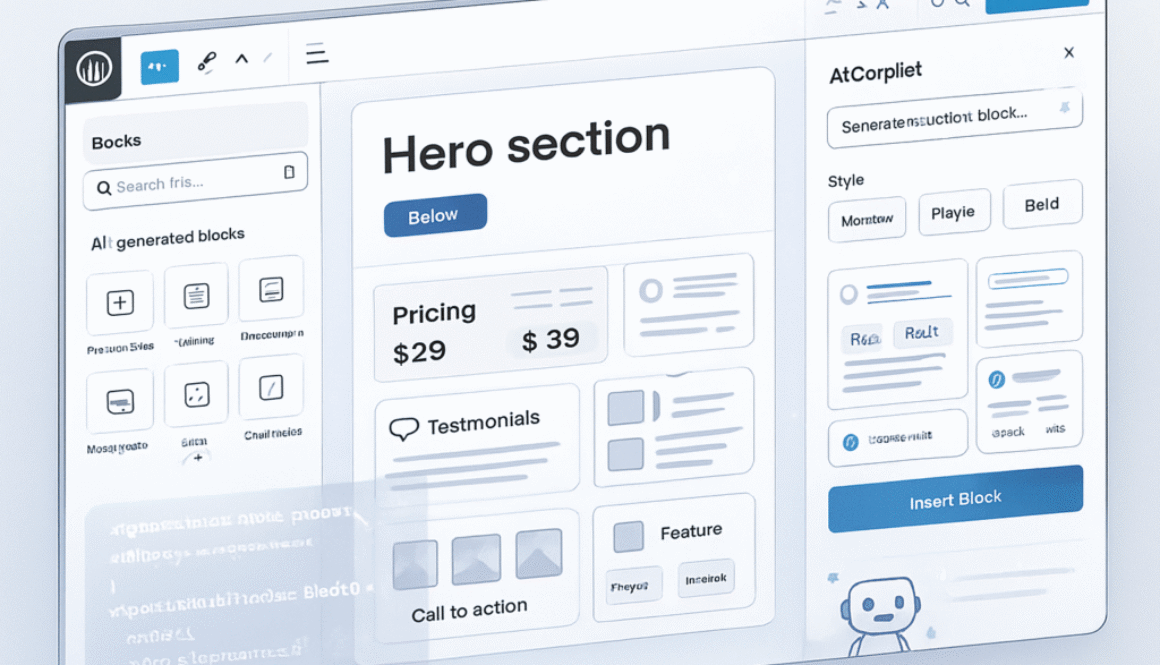
Practical Guide to WordPress Blocks and AI-Generated Custom Blocks
Introduction to WordPress Blocks
WordPress blocks are the building units of modern post and page layouts. They allow content creators to assemble text, media, and interactive elements in a visual editor, rather than relying on shortcodes or bespoke templates.
At a glance, blocks simplify content composition: add a paragraph, drop in an image, place a testimonial, and arrange items with simple controls. Behind the scenes, each block encapsulates markup, editable settings, and presentation data, ensuring that edits are predictable and portable.
For site owners and developers alike, understanding blocks clarifies when to use core components and when a tailored solution is justified.

What a Block Is and How It Works
Blocks as reusable HTML units
Each block corresponds to a piece of HTML that can be inserted and moved across the editor. Simple blocks map directly to single elements like headings or images. Composite blocks group multiple elements into a single, reusable component—think of a card that contains an image, headline, text, and a button.
Reusability matters because a well-defined block can be dropped into many places while keeping consistent structure and styling.
Block attributes and front-end rendering
Blocks store attributes—such as alignment, color choices, typographic settings, and content—usually as structured data within the post content. When the page is rendered, those attributes drive the HTML output or server-side rendering logic, producing the visible result for visitors.
Attribute values can be tied to theme settings, allowing blocks to inherit the site’s typography and color palette, thereby maintaining visual consistency across different contexts.
Static blocks, server-rendered blocks, and interactive blocks
Blocks fall into a few technical types. Static blocks output plain markup and need no extra processing. Server-rendered blocks generate their appearance at runtime using PHP, which helps when the content depends on database queries. Interactive blocks utilize JavaScript for behaviors such as accordions or animated counters, enabling client-side interactivity directly within the editor and on the page.
Interactive functionality can be added while keeping accessibility and progressive enhancement in mind, ensuring that content remains accessible to users with limited scripting capabilities.
Core Blocks and Why They Matter
Accessibility maintenance and theme friendliness

The WordPress project maintains core blocks. That maintenance typically includes accessibility checks, bug fixes, and compatibility updates. Using these components reduces the maintenance burden for site owners because improvements flow in with WordPress updates.
Core blocks are also designed to play nicely with themes via theme.json and standardized patterns that control spacing and typography.
When core blocks are the best choice
Choose core blocks when the available controls meet the page requirements. They are ideal for common content patterns and provide reliable behavior with minimal custom code.
Custom development should be considered when a frequent content pattern is awkward to build with existing blocks or when an editor experience needs to be simplified for non-technical users.
When to Create Custom Blocks
Improving editor usability for site owners
A custom block can hide complexity from editors and expose only the relevant fields. For example, a business hours component can present a simple day/time matrix while the underlying HTML keeps markup consistent and accessible.
Reducing friction in the editor lowers the likelihood of mistakes and ensures content consistency across multiple contributors.
Typical use cases that justify custom blocks
Common reasons to build custom blocks include repeatable, structured content (such as testimonials, FAQs, and timelines), branded design elements that must be uniform, or interactive features that require specific state behavior not covered by core blocks.
Developing Blocks with Modern Tools

React and WordPress block APIs
Blocks are commonly built with React using WordPress block APIs. The editor exposes React components and utilities for registering blocks, handling attributes, and rendering both editor and front-end output.
The learning curve includes understanding block lifecycle, props/state handling, and how to integrate with WordPress data stores.
Build toolchain configuration and dependencies
Typical block projects include npm-based toolchains, bundlers, and configuration files. A scaffold will consist of a package.json file, scripts for building, and a source folder containing JavaScript and PHP glue to register the block.
Managing these dependencies can be tedious, especially for smaller teams or one-off projects.
Interactivity API and accessibility considerations
The Interactivity API provides a pattern for wiring client-side behaviors into blocks while respecting performance and accessibility. Toggleable panels, keyboard navigation, and reduced-motion preferences are aspects developers should implement.
Designing state changes so they are perceivable by assistive technologies improves usability for a wide audience.
AI Assisted Block Development with TX
Using prompt engineering to generate blocks
Tools such as TX convert a textual prompt into scaffolded block plugins. A well-structured prompt describes attributes, repeatable fields, theme.json integration, and accessibility requirements, ensuring the output is usable immediately or after minimal refinement.
Prompt quality impacts results. Small iterative prompts often produce more accurate scaffolds than a single long request.
Iteration strategy and prompt polishing
Start small: request one focused feature, validate it, then expand. Use an AI assistant to refine the prompt if needed. This reduces the time spent fixing unrelated behaviors in the generated code.
Strengths, limitation,s and experimental nature
AI generation speeds up boilerplate creation, scaffolding registration, and wiring of standard controls. However, generated code may require debugging, accessibility tweaks, and behavior fixes. Complex logic or highly customized animations often still need a developer’s assistance.
Five Example Blocks Tested
Testimonial block and results
A testimonial block with name, text, star rating, and optional photo was generated successfully. The editor controls functioned as expected, and the front-end output matched expectations. This is a typical success case for the tool.
Business hours block and issues encountered
The tool produced a business hours block, but interactions were unreliable in the editor. Time inputs did not always respond as expected, showing that some UI elements require manual debugging after generation.
FAQ accordion block and interactivity challenges
An accordion was scaffolded, but repeatable entries and answer editing did not behave consistently. Toggle state handling needs refinement to ensure only one panel remains open at a time and to support keyboard users.
Highlight timeline block and animation gaps
A vertical timeline with repeatable entries was created, and content editing was completed. Scroll-triggered animations were missing or inconsistent, indicating that viewport triggers often need custom code adjustments.
Animated counter block and successful behaviors
The animated counter performed well, supporting number formatting, honoring reduced-motion preferences, and animating on scroll. This example shows that simpler interactivity patterns are more likely to work out of the box.
Overall outcomes, common fixes, and how to proceed
Across tests, generated blocks provided a solid starting point. Common fixes included making repeatable fields truly repeatable, improving keyboard accessibility, and polishing animations. For developers, this translates to less setup work but some cleanup is required.
Working with Generated Code
Reviewing scaffolded plugins and code quality
Generated code often includes a standard structure, consisting of a plugin file, PHP registration, src and build folders, and package metadata. Quality varies, so inspect the codebase for consistency in naming, comments, and adherence to project conventions.
Installing dependencies, running build scripts, and debugging
To iterate locally, run’ npm install’ and the build scripts. The build process bundles source files into a deployable plugin. Debugging may involve fixing imports, adjusting React state, or correcting template output.
When a developer is still required
Non-developers will find the generated artifacts helpful, but developer involvement is often necessary to finalize behavior, ensure accessibility, and resolve build issues.
Practical Recommendations and Verdict
Who benefits from AI-generated blocks
Developers benefit most: the tool accelerates scaffolding and reduces repetitive setup. Agencies and teams can use the output as a time-saving baseline. Site owners with coding skills can adopt the plugins after minor fixes.
Best practices for adoption and testing
Iterate in small steps, test in the editor and on the front end, and validate accessibility. Keep version control active and treat generated code like any other third-party plugin: review, test, and make adjustments as needed.
Final verdict, next steps, and resources
AI-assisted block generation lowers the entry barrier for building custom components. It does not replace developer expertise, but it does reduce repetitive setup time. Try generating a simple block, inspect the code, and plan a short debugging pass to reach production quality.
For practical work, run builds locally, add unit tests where appropriate, and validate behavior in multiple themes and devices.